DNS records tell the internet where your website, email and other services live. You may need to add one when a service asks you to verify your domain, or when you set up email with another provider.
The records you manage here are served by our nameservers, so they take effect when your domain uses ns1.abcteck.com and ns2.abcteck.com. See Pointing your domain to ABC Teck.
See your records
Open Websites, click your domain and scroll to DNS Records. Each record shows its type, name, value, TTL and priority, with Edit and Delete buttons. Use the buttons above the list to sort the records or show one type only: A, AAAA, CAA, CNAME, MX, NS or TXT.
Add a record
- Under Add DNS Record, choose the Type: A, AAAA, CNAME, MX, TXT or CAA.
- In Name, type
@for the domain itself, or the subdomain name such aswww. - In Value, type what the service told you. The hint in the box changes with the type: an IPv4 address for A, or text for TXT records such as verification codes.
- Leave TTL at 3600 unless you were told otherwise, then click Add.
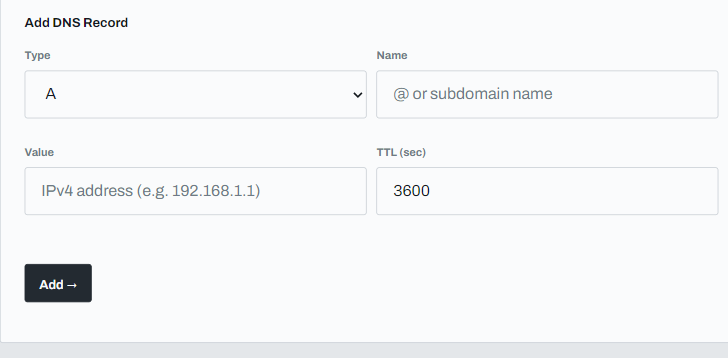
The page says the record is queued and will be active within 60 seconds. It then appears in the list.
The Common DNS Setups box under the form shows ready-made examples: pointing the main domain, a www subdomain, Google Workspace email, SPF and domain verification.
Delete a record
Click Delete next to the record and confirm. The page says the record is deleted, and it disappears from the list within about half a minute.
Be careful with these
- Do not delete the A record for your domain or the NS records, or your website stops loading.
- If you use email with us, leave the MX and TXT records for email in place. See Create a business email address.
- A record you add can take time to reach everyone, like any DNS change.