If your website is a Node.js app (it has a start file and usually a package.json), you can run it on your hosting account without a command line.
1. Turn on Node.js
- Open Website Settings and find the Node.js section for your domain.
- Click Enable Node.js. A window opens showing the status as Disabled.
- Click Enable Node.js in that window.
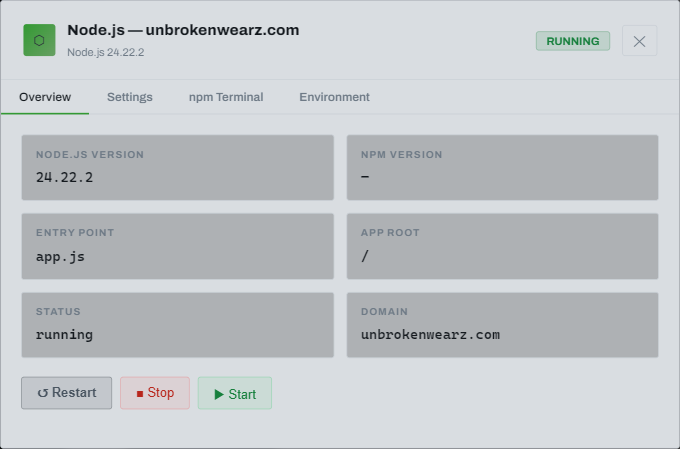
After a few seconds the status changes to RUNNING and the Node.js version is shown.
2. Upload your app
Open File manager and upload your app's files into the folder it opens in. By default the entry point is app.js, and the application root is the main folder, which is where package.json should be.
A minimal example, app.js:
const http = require('http');
http.createServer((req, res) => {
  res.writeHead(200, { 'Content-Type': 'text/html' });
  res.end('<h1>Hello from Node.js</h1>');
}).listen(process.env.PORT || 3000);
With Node.js on, your app answers the requests for the domain. A plain index.html in the same folder is not shown.

3. Install packages
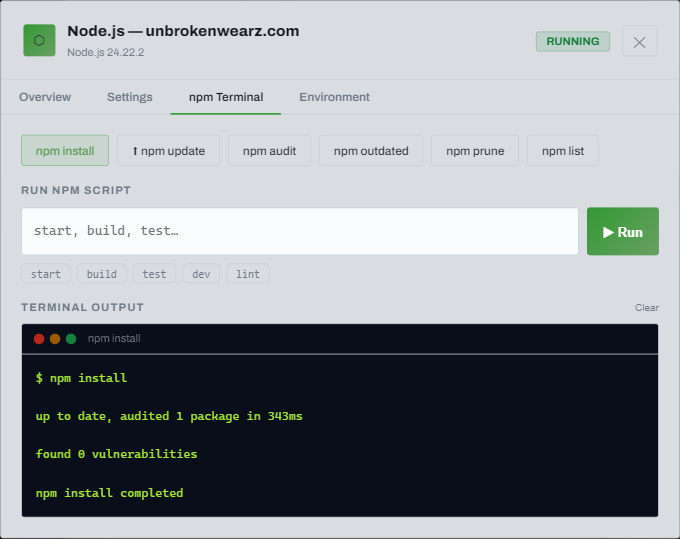
If your app needs packages, open the npm Terminal tab and click npm install. The output shows the result, ending with completed. The same tab can run other scripts from your package.json such as build or start.
Change settings, restart or stop
- Settings: choose the Node.js version, the entry point and the application root, then click Save Settings.
- Overview: Restart, Stop or Start the app.
- To remove it, click Disable Node.js in Settings. Your app stops running.