Many websites and apps store their content in a database. WordPress creates its own when you install it. For anything else, you can create one yourself from the dashboard.
See your databases
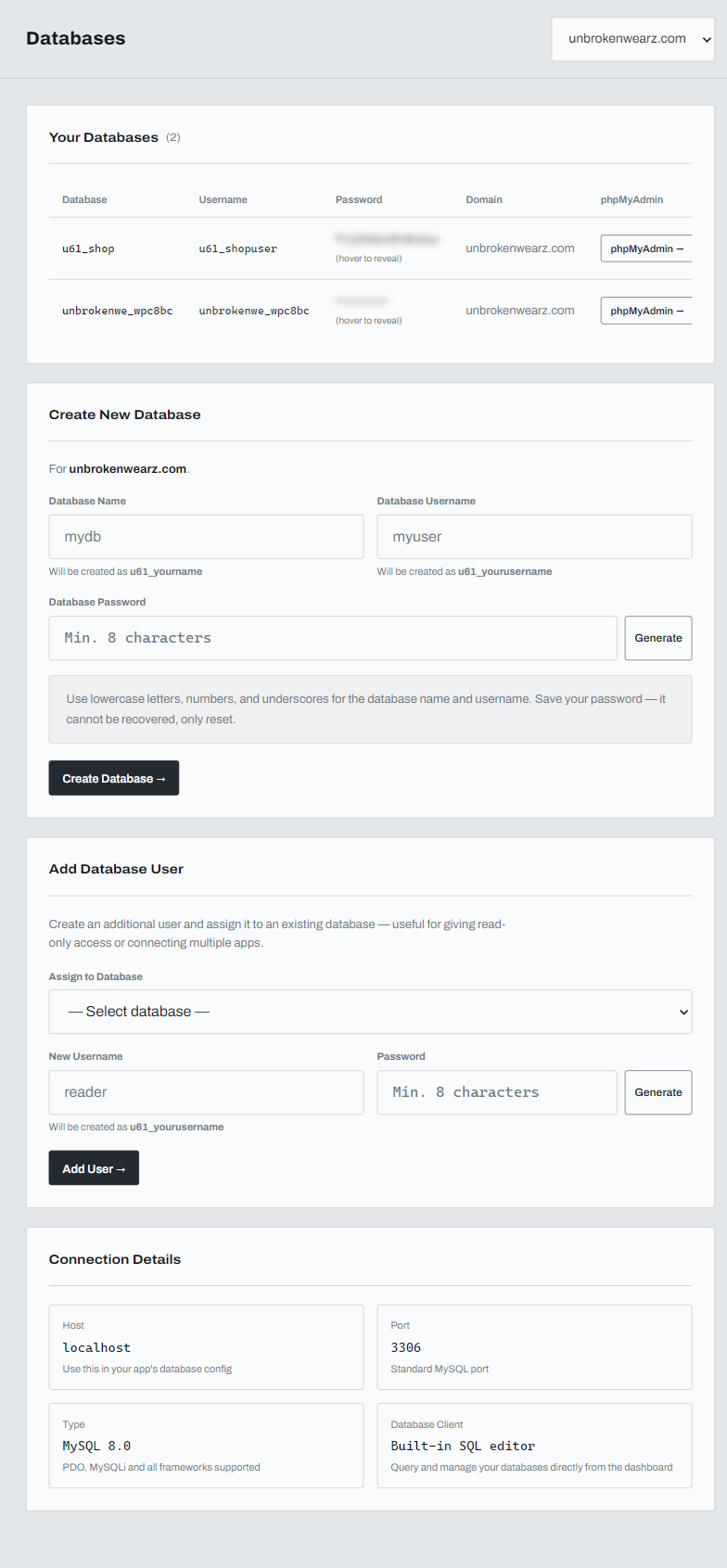
Open Databases in the left menu and choose your domain. The list shows each database with its user name, the domain it belongs to, a phpMyAdmin button and a Delete button. The password is hidden: hover over it to reveal it.
Create a database
- Under Create New Database, type a Database Name and a Database Username. Use lowercase letters, numbers and underscores.
- Type a Database Password of at least 8 characters, or click Generate. Save it somewhere safe.
- Click Create Database.
A prefix is added to both names automatically. The small line under each box shows the final name, for example u61_shop. Use the final names, with the prefix, in your app. The page confirms with Database ... created successfully, and the new database appears in the list. Your plan includes a set number of databases.
Connect your app
The Connection Details box at the bottom of the page lists what your app's configuration needs:
- Host:
localhost - Port:
3306 - Type: MySQL 8.0. PDO, MySQLi and common frameworks work with it.
Add the database name, user name and password from your list.
Open phpMyAdmin
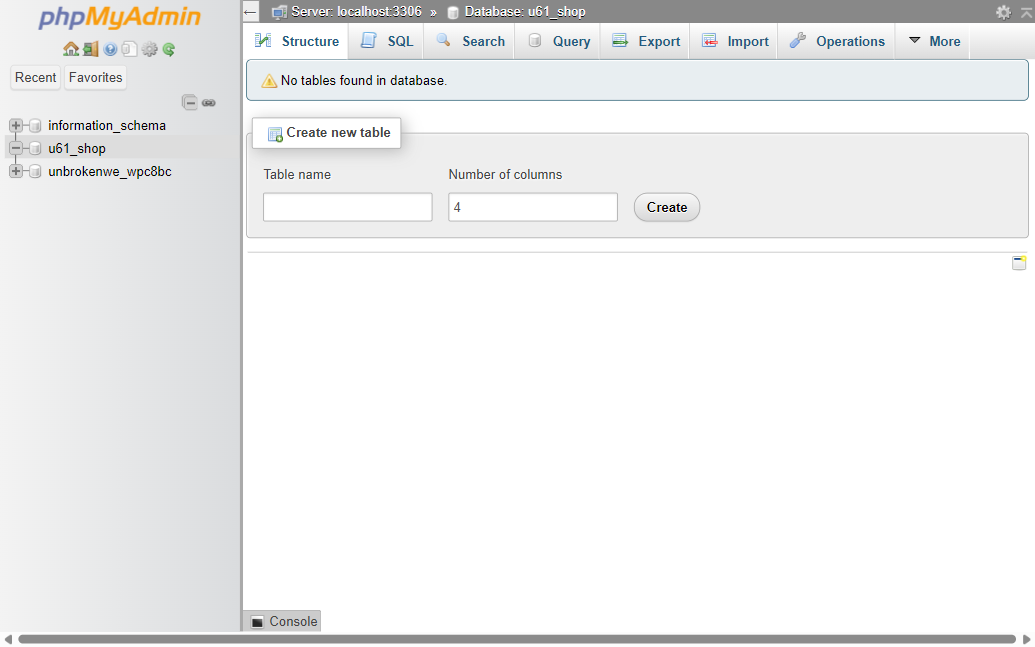
Click phpMyAdmin in the row of your database. It opens already signed in, on that database, so you do not need to type the password. You can create tables, run SQL, search, import and export from there.
Give another app or person access
Use Add Database User. Pick the database, choose a new user name and password, and click Add User. This is useful for read-only access or for connecting more than one app to the same database.